
Manage users
Members are managed in-app at Admin → Users. From there you create members, set their role, assign their region scope, and deactivate anyone who’s left the campaign. Every change stays inside your organization and is audit-logged.
Who can do what
Section titled “Who can do what”Authority is split between two roles:
- Admin and Org Manager can both create users and assign the field roles — Coordinator, Candidate, Canvasser, Analyst, Viewer, Messenger, SMS Manager.
- Only an Admin can assign a geographic scope or grant the elevated Admin or Org Manager roles.
So an Org Manager can staff a campaign end to end, but the geographic guardrails and the top-level roles stay with an Admin.
Create a user
Section titled “Create a user”-
Open Admin → Users and choose New user.
-
Enter the person’s name and email.
-
Pick a role. This decides what they can do — see Roles & access for the full breakdown. Org Managers can set any field role; only an Admin can grant Admin or Org Manager.
-
(Admin only) Assign a region scope if this person should be limited to a turf — a whole Legislative District, a subregion, or several of them. Leave it empty to give organization-wide visibility. See Region scoping for how turfs work.
-
Leave Send an invite link ticked. The account is created with no working password, and you get a one-time link to hand over. Untick it only to set a password yourself — for restoring access out of band, not for onboarding.
-
Save. Copy the link and send it to them. It is shown once, it works once, and it expires in 14 days. They open it, choose their own password, and are signed straight in — everything they see bound to your organization and their scope.
Give a candidate their own login
Section titled “Give a candidate their own login”A candidate’s record under Candidates is not a login. To let them sign in:
-
Admin → Users → New user, with their name and email.
-
Set the role to Candidate. A Which candidate is this the login for? picker appears — choose their race.
-
Save, and send them the invite link like any other member.
That link is what makes the account theirs: it copies the candidate’s turf onto the login, so they see their own district and nothing else. Without it, an account with the Candidate role would have no race attached and — because no turf means no restriction — the whole county’s data.
Once they sign in, the candidate maintains their own photo, bio, website, donate link, and social accounts under My Profile. The ballot facts — their office, party, district, and election date — stay yours to set and are read-only to them, because those fields decide which doors and responses belong to their race. Their full walkthrough is Candidate.
Let a candidate add their own volunteers
Section titled “Let a candidate add their own volunteers”A candidate can be granted permission to create their own field accounts, so they don’t have to route every volunteer through you. Turn it on from their record under Candidates.
What it grants is deliberately narrow, and the limits are enforced on Voterra’s servers rather than by the form:
- Field roles only — canvasser or viewer. Not coordinator, manager, or admin.
- Never wider than their own turf — a candidate cannot grant a piece of geography they don’t themselves hold.
- One level deep — the volunteer they create cannot, in turn, create anyone.
- Their race only — the permission reaches their own candidacy and no other.
Leaving it off does not blind them. A candidate always sees the roster of who is working their race — including the committee staff you assigned to them, which they see as read-only. Only the ability to add people follows the permission.
Candidates started through Campaign Setup already have this: the wizard creates the login, the link, and the turf mirror in one step. This path is for a candidate added afterwards.
Someone lost their link, or their password
Section titled “Someone lost their link, or their password”Use Invite link / Re-invite on their row in Admin → Users. It issues a fresh link and kills any outstanding one, so a link that leaked into an old group chat stops working immediately.
Prefer this to typing a new password for them. It keeps the credential in exactly one person’s hands, which is the whole reason the invite flow exists. Accounts that have never been claimed are badged Invite pending.
A deactivated account can’t be invited — reactivate it first.
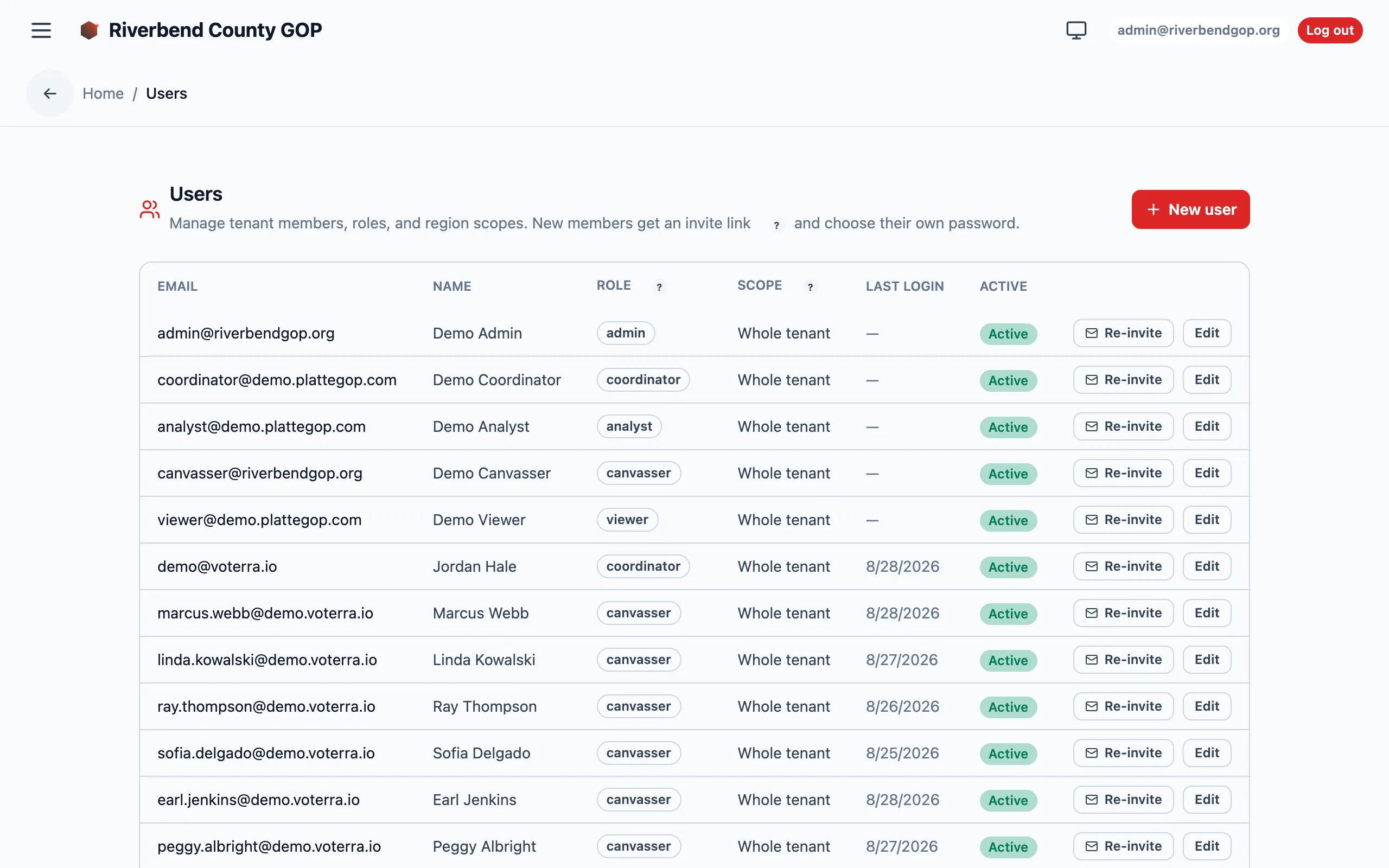
Admin → Users — the member table where roles and scopes are set. Details blurred for privacy.
Edit a role or scope
Section titled “Edit a role or scope”Open the member from the list and adjust their role or scope. Changes take effect on their next request. Region scope is additive — a user can hold multiple turfs, and their view is the union of all of them.
Deactivate a user
Section titled “Deactivate a user”Deactivating a member immediately revokes their access without deleting their history — their past activity stays in the audit log. Reactivate them the same way if they return.