
Getting your campaign onboarded
This page is for the person doing the setup — the county chair, executive director, or campaign manager whose account can create other accounts. If you just received an invite link, you don’t need any of this: open the link, set your password, and you’re in (Logging in & accounts).
Campaign Setup is the five-step wizard that stands up a candidate and their whole team at once. Nothing is created until you press Start Campaign on the last step — you can draft, close the tab, and come back.
Have these ready
Section titled “Have these ready”- The candidate’s basics — full name, the office exactly as it appears on the ballot, party, and election date.
- Your roster — for each teammate: their real email address, what they’ll do (roles are explained inline as you pick them), and where they’ll work. No passwords needed: everyone gets an invite link and sets their own.
- Room on your plan — if your subscription meters seats, the wizard checks the roster fits before you can launch and tells you if it doesn’t.
The five steps
Section titled “The five steps”-
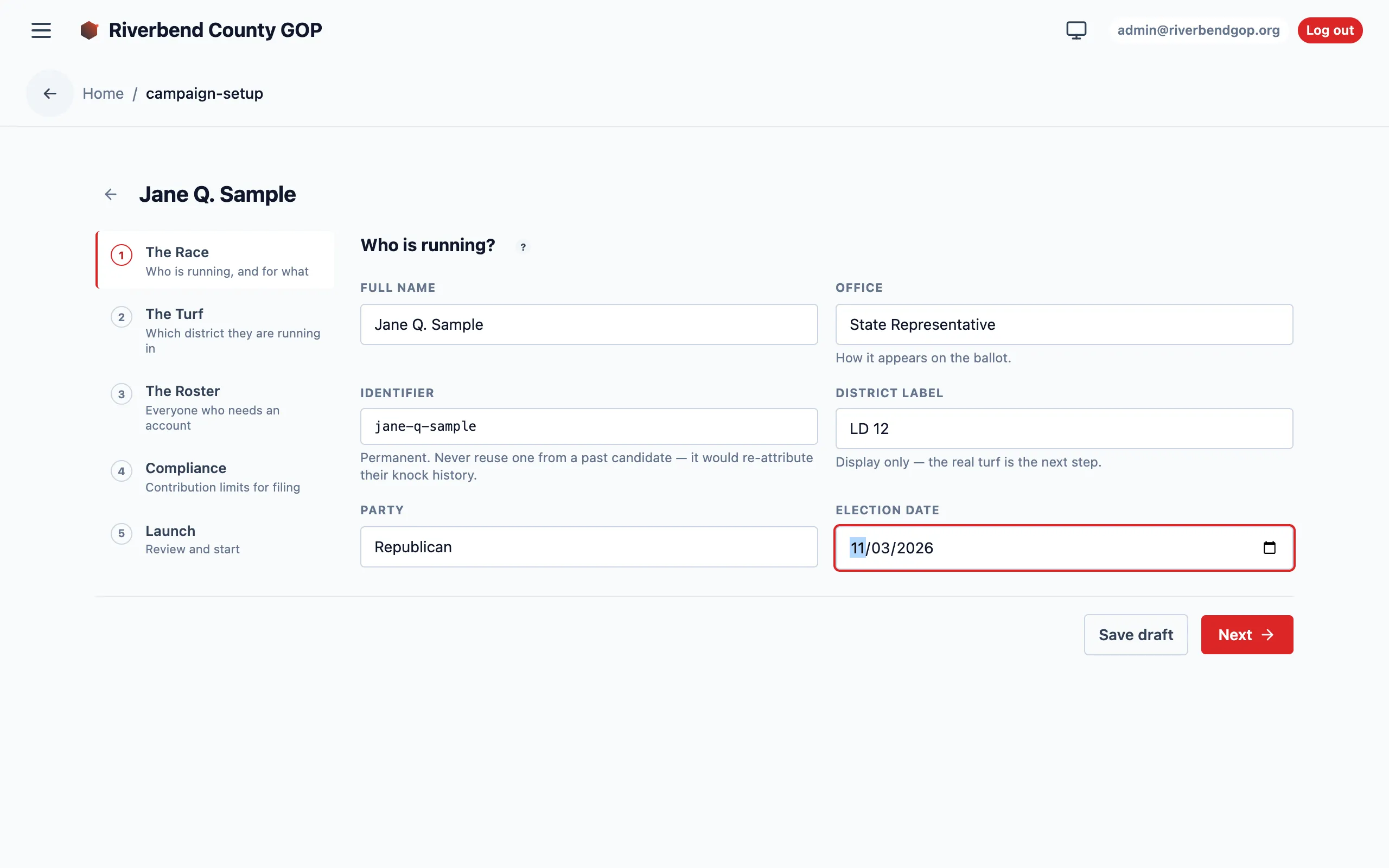
Race — who is running, and where on the ballot.
Full name, office, party, election date, and a district label. One field to treat with care: the short name (auto-filled from the candidate’s name) becomes the campaign’s permanent identifier, so don’t reuse one from a past campaign — the field warns you if you try.
-
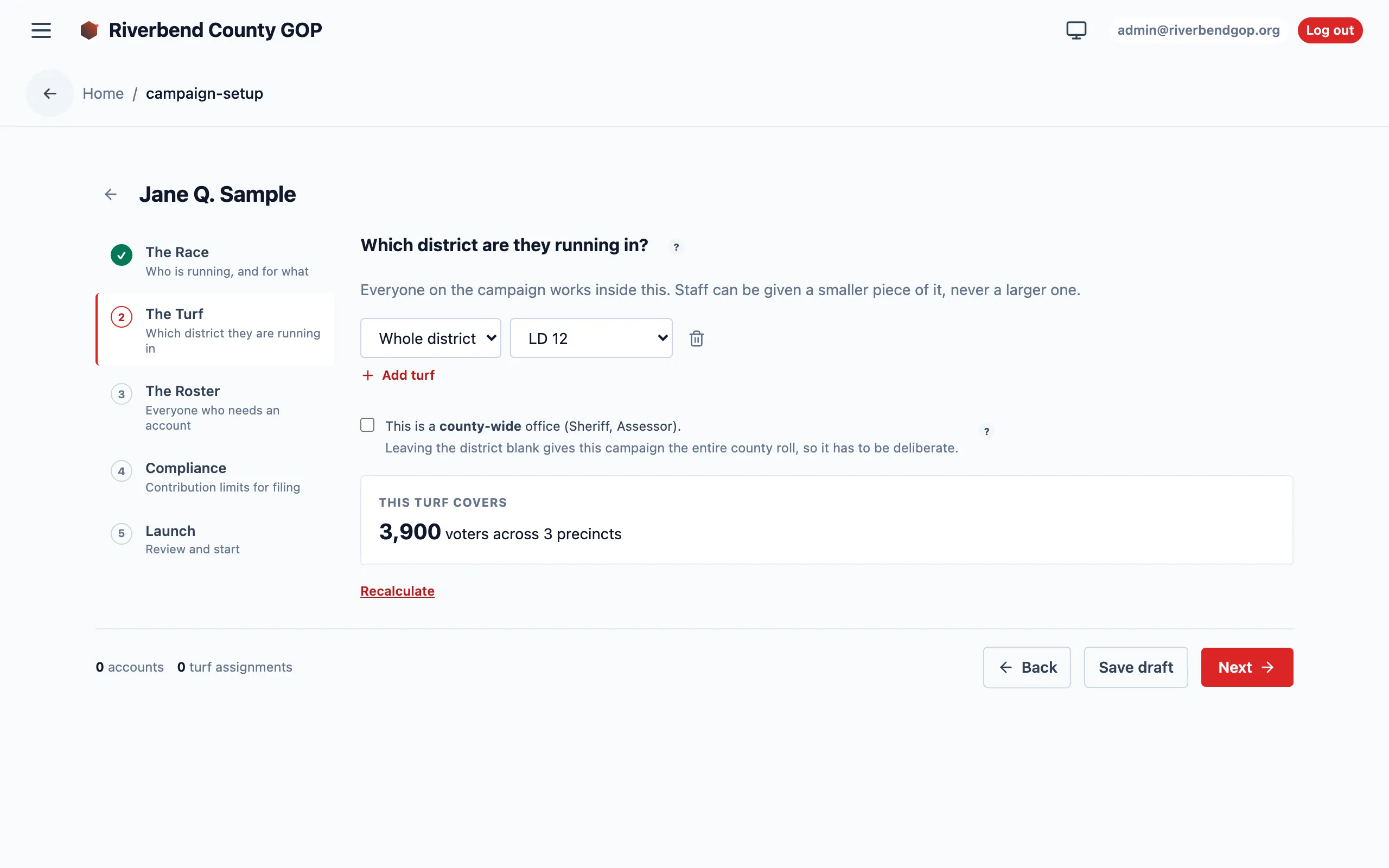
Turf — the campaign’s reach.
Pick the districts, subregions, or precincts the campaign covers. A running readout shows how many voters and precincts that adds up to. Everything a teammate can see must sit inside this reach, so the wizard describes each staffer’s area relative to the candidate’s — an out-of-district assignment reads as “outside this campaign” while you can still fix it.
Running county-wide? That’s a checkbox, not an empty field — leaving the turf blank and ticking county-wide are the same thing, and the wizard asks you to confirm it so a forgotten field never silently becomes everything.
-
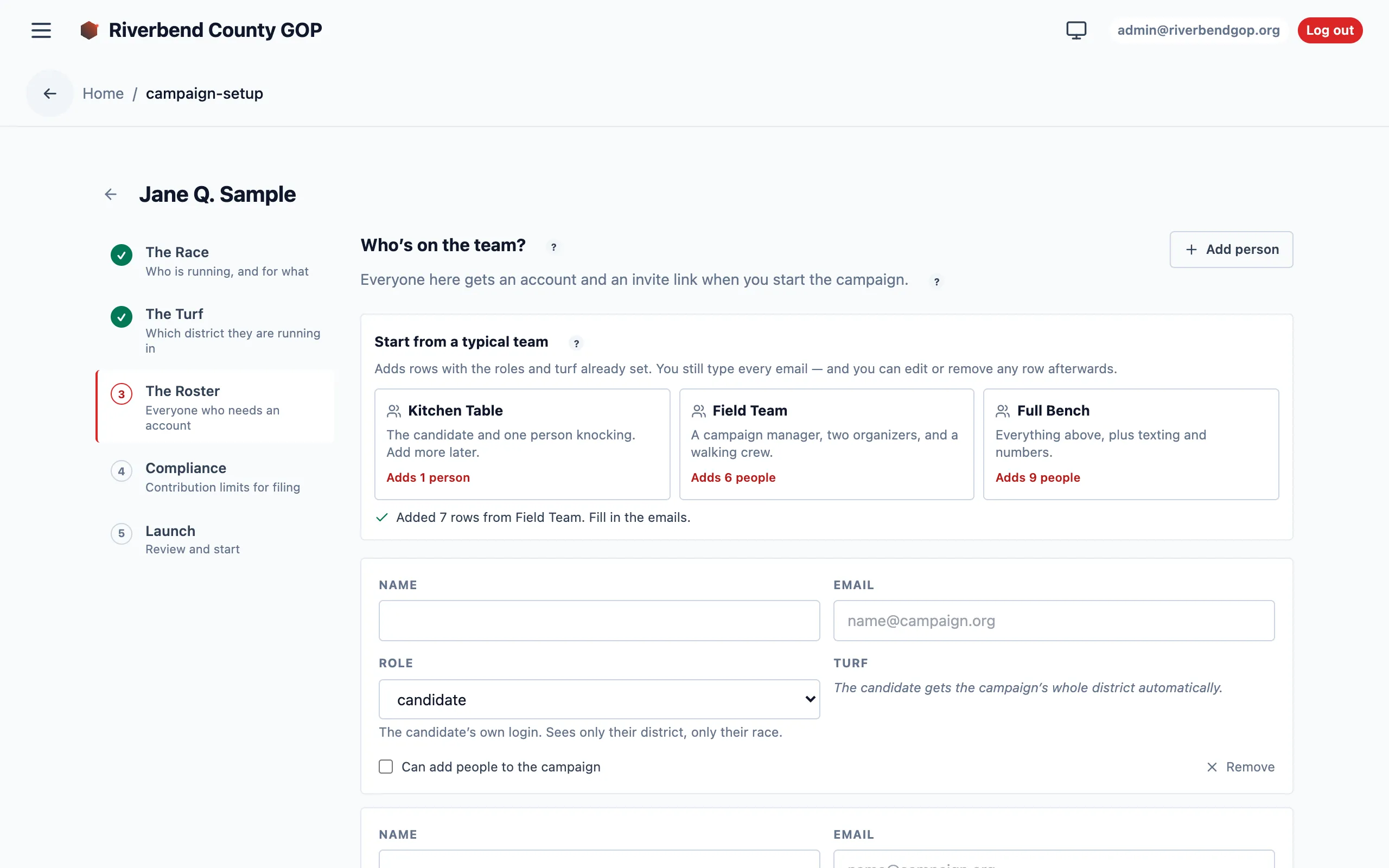
Roster — the team that runs it.
One row per person: email, role, and area. Start from a template — a kitchen-table campaign, a field team, or a full bench — and edit from there. The role menu only offers what your account is allowed to grant.
Combinations that work well:
- Campaign manager — full management inside the district, with permission to add their own field team later.
- Field organizers — coordinators scoped to one or two subregions.
- Canvassers — scoped to a single precinct or subregion.
- Texting lead — the SMS manager role, if the campaign will text.
-
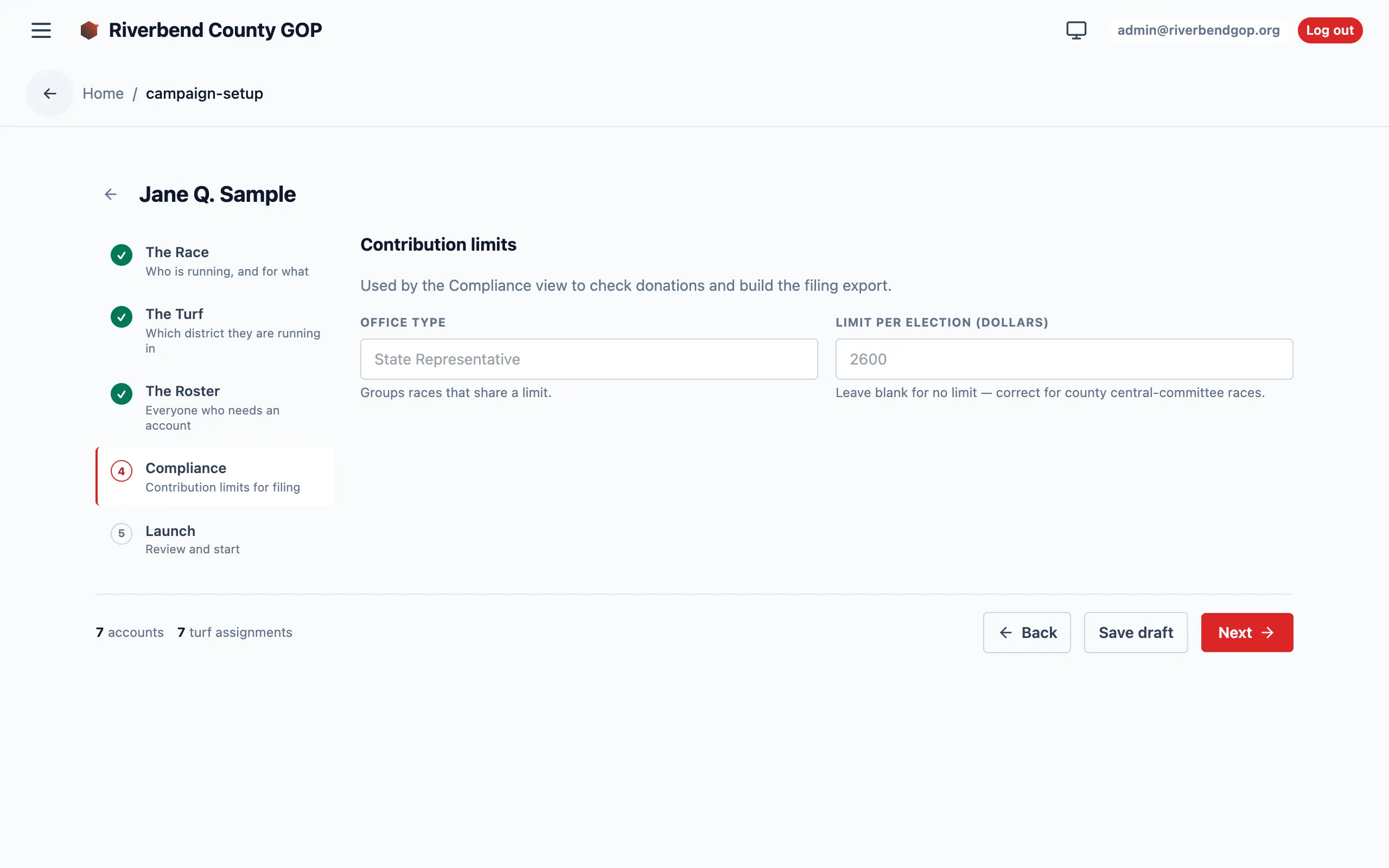
Compliance — the money boundaries.
Contribution limits for the office and the filing authority the campaign reports under. Blank fields mean the defaults apply; if no rule exists yet for this office, the wizard points it out without blocking you.
-
Launch — the pre-flight check, then Start.
The wizard re-checks the whole draft every time you change a field and lists anything that needs attention next to the row that caused it. Blockers (a teammate assigned outside the candidate’s turf, a typo’d or already-used email, more people than seats) disable the Start button until fixed. Warnings (like a missing contribution rule) leave it enabled — read them, then go.
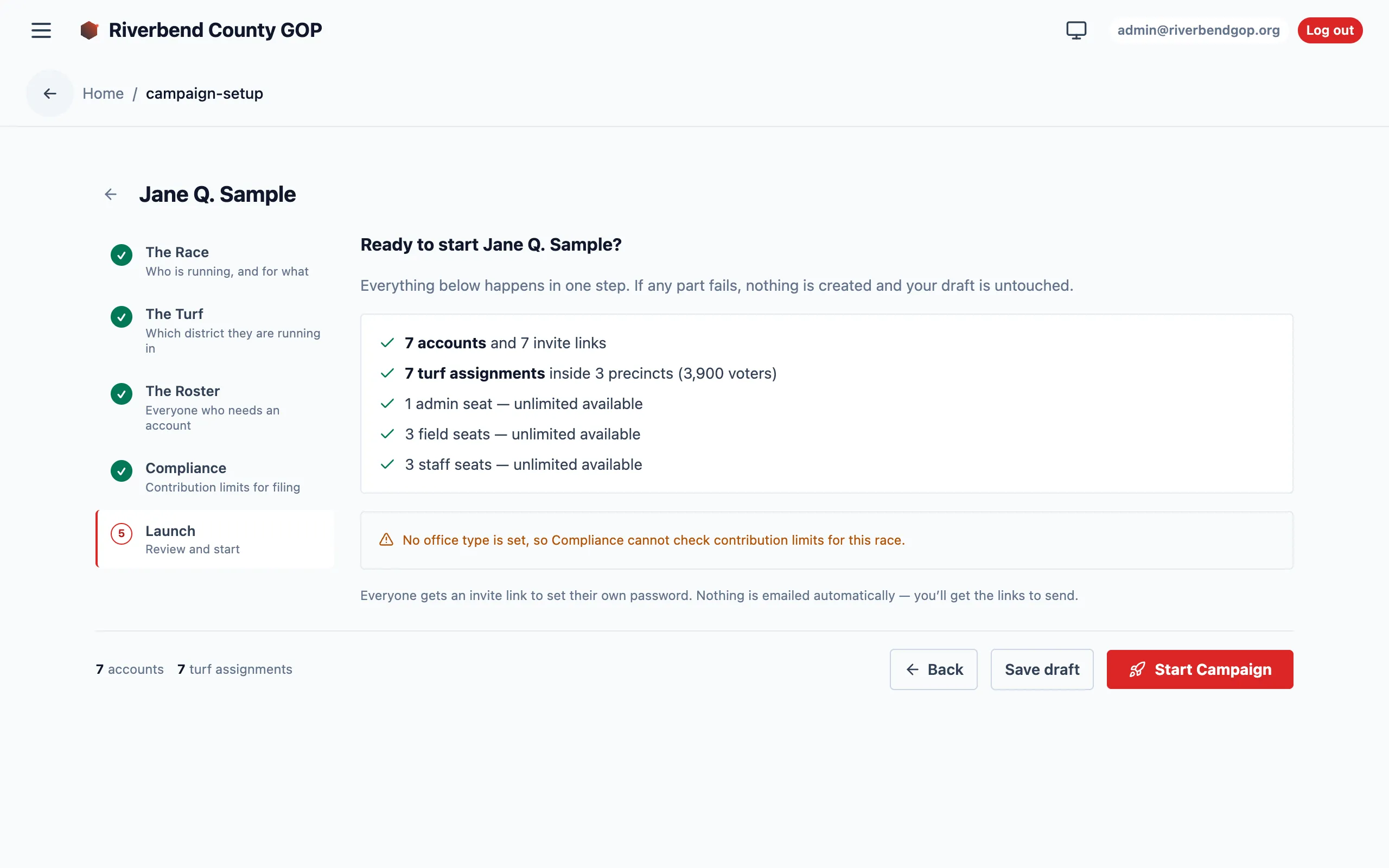
Press Start Campaign when the blocker list is empty. Everything is created in one transaction — if anything fails, nothing half-exists.
After Start Campaign
Section titled “After Start Campaign”- Every teammate gets an invite link. No account is ever created with a password somebody else chose. The results screen lists one link per person, each with a copy button — send them however your campaign already communicates (email, text, a printout at the kickoff meeting).
- Starter routes are one more click. The wizard can cut a first batch of walking routes from the campaign’s turf, ready for a coordinator to hand out. It’s the same engine as the Autoplan Routes button, pointed at your new campaign.
Your first-login checklist
Section titled “Your first-login checklist”Ask the new campaign’s manager to walk through this on their first login:
What each checkpoint looks like:
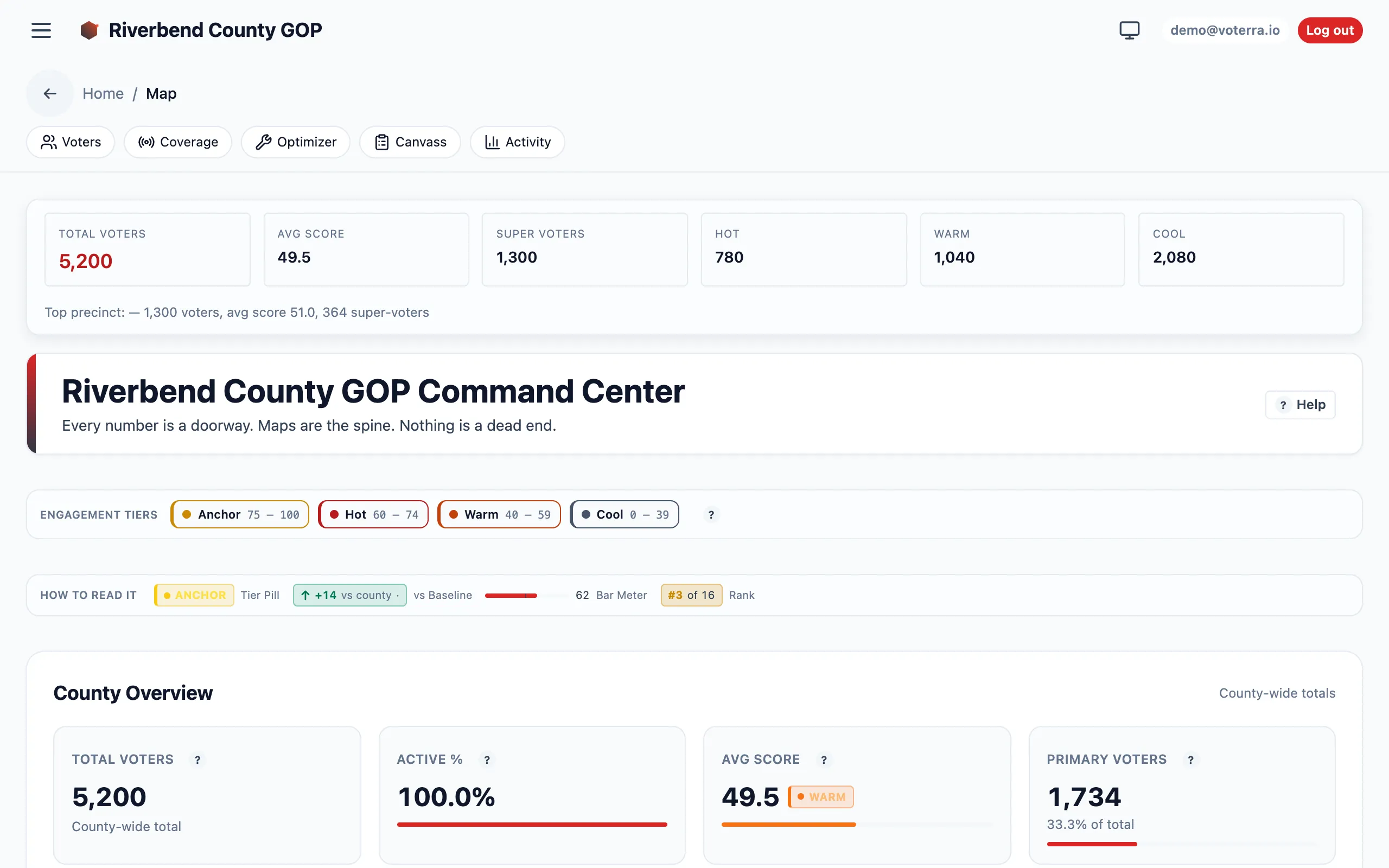
Checkpoint 1 — the county dashboard renders.
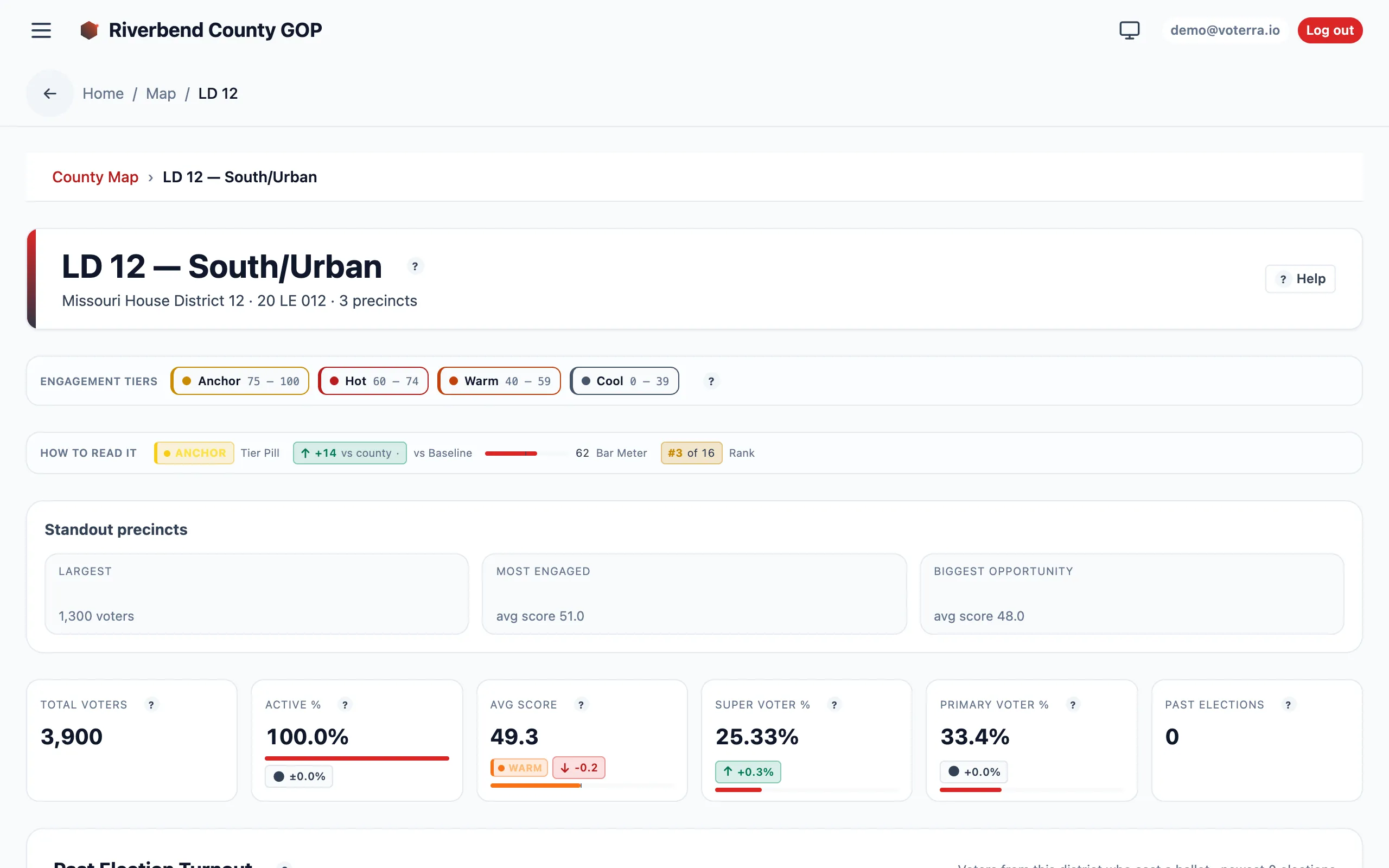
Checkpoint 1 (drilldown) — district → subregion → precinct.
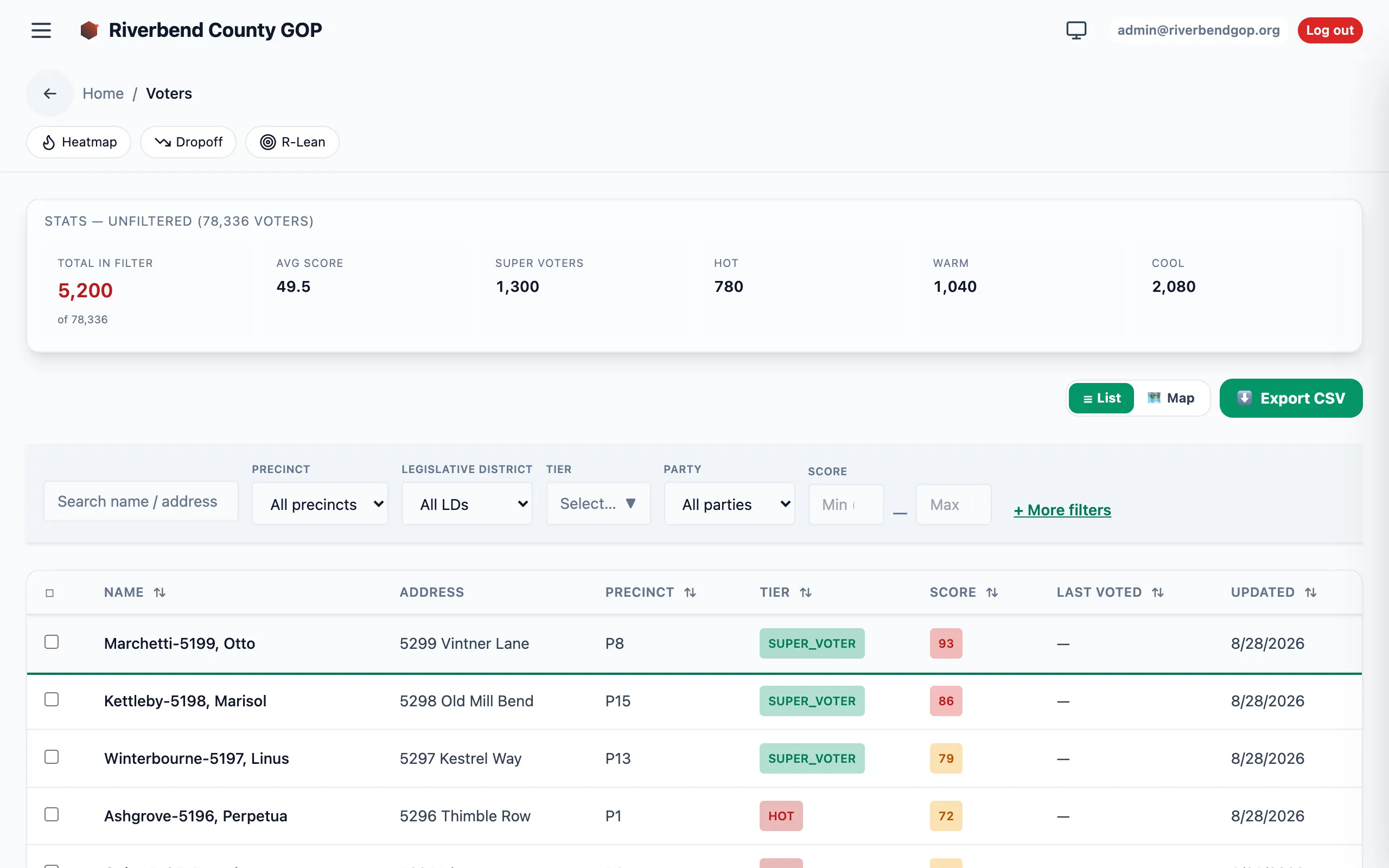
Checkpoint 2 — voter search and filters.
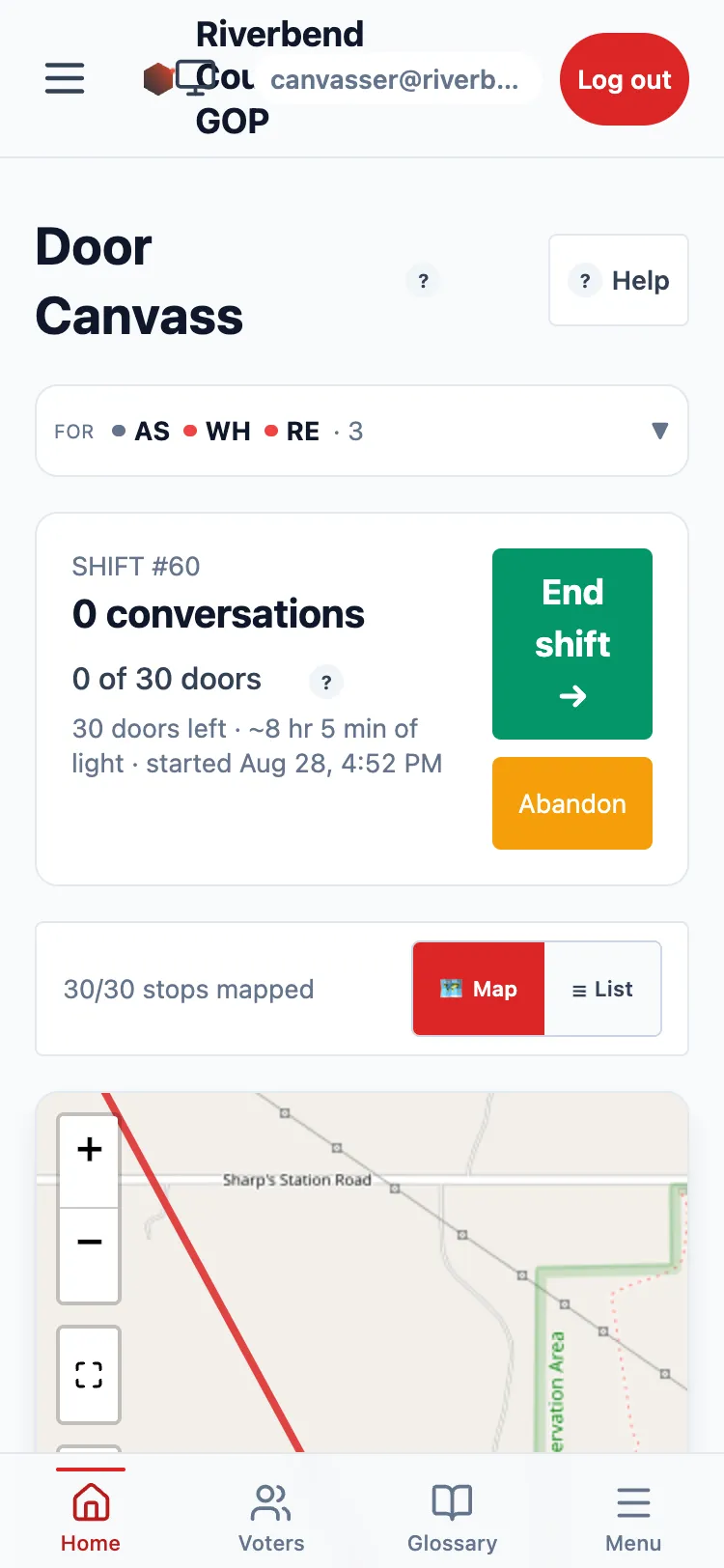
Checkpoint 4 — canvassing from a phone.
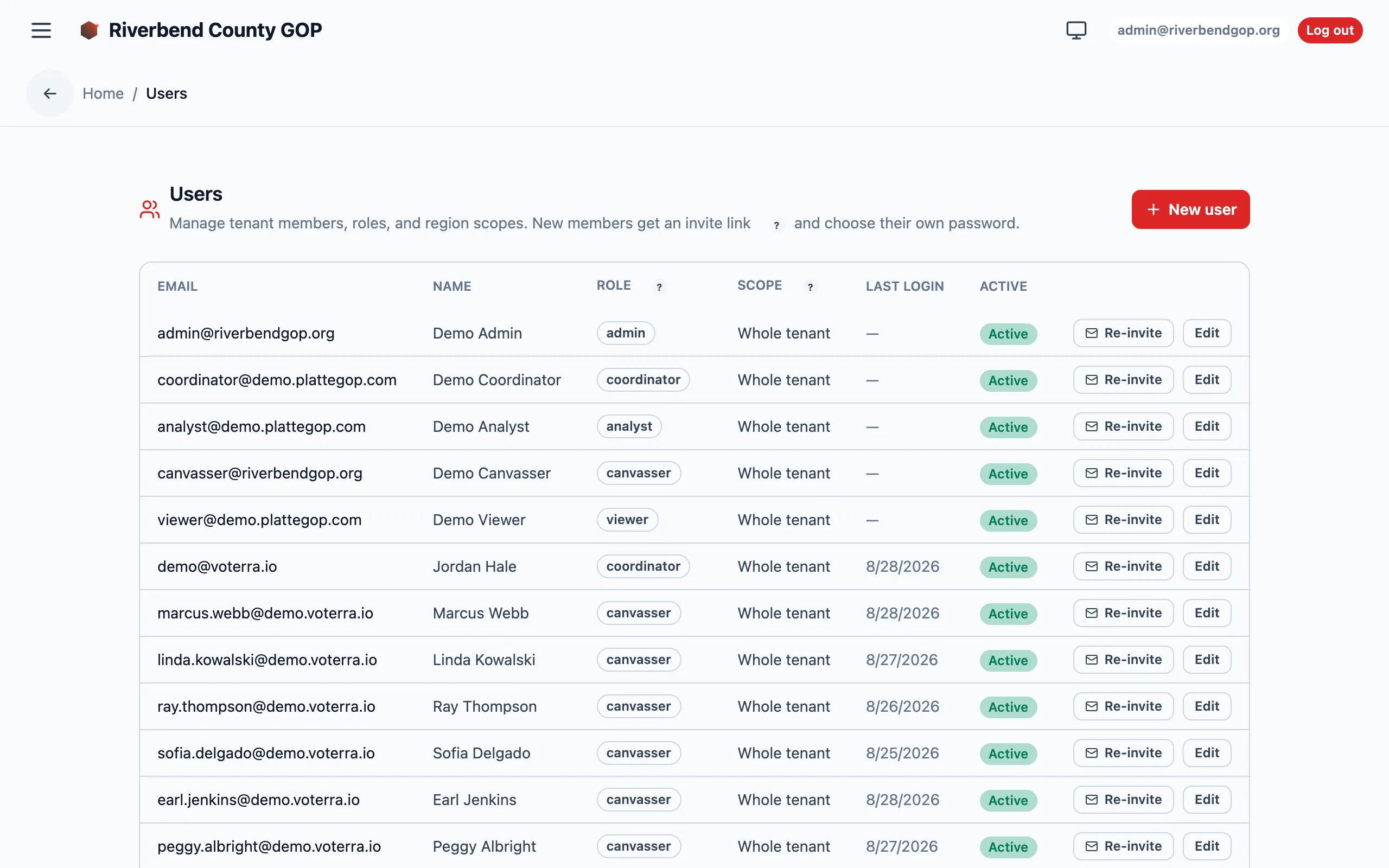
Sanity check — Admin → Users shows one row per teammate, with the role and area exactly as you set them in the roster step.