
Planning
Planning is where a targeted universe becomes a set of walkable assignments. If intelligence decides who, planning decides who walks which doors, in what order.
Resource optimizer
Section titled “Resource optimizer”The Resource Optimizer takes a candidate voter set plus constraints — max stops per turf, geographic bounds, required precincts — and returns balanced turfs. Each turf is a ranked, geographically tight set of stops ready to become a route.
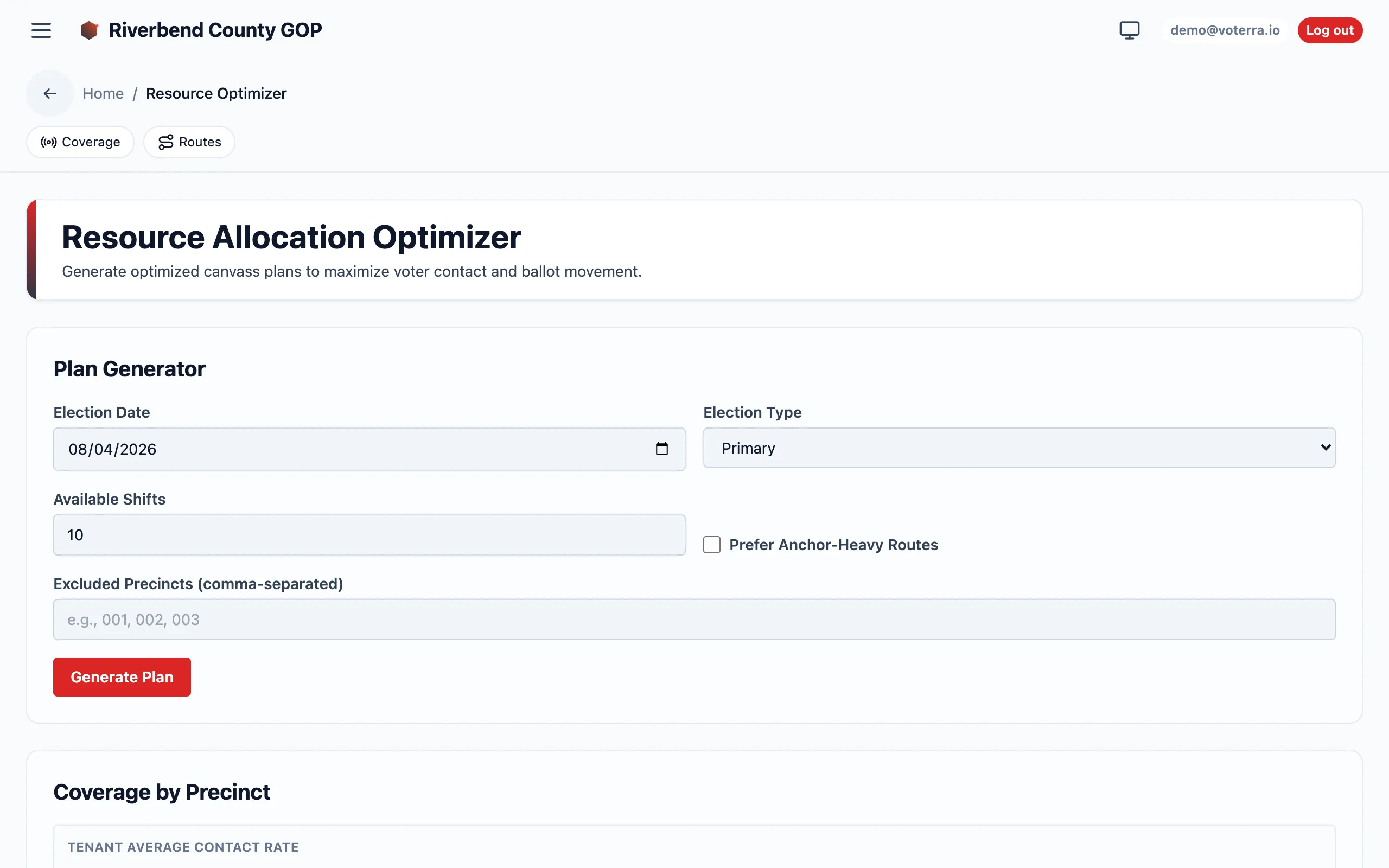
Reach for the optimizer (rather than a single lassoed route) when you need to:
- Split one neighborhood across several canvassers fairly.
- Weight by a non-default signal — a narrative tag, or fresh AAR feedback.
- Experiment with route shape (linear, loop, radial).
See Routes for how the optimizer relates to the default Friendlies-First builder.
Autoplan Routes (the Easy button)
Section titled “Autoplan Routes (the Easy button)”Autoplan Routes on the Routes list is the one-click version of the optimizer for the common case: “I want a batch of walkable routes from what’s already targeted, right now.” Every setting is optional, so the defaults work for most organizations without any tuning.
The launch wizard’s Start Campaign step uses the same engine for its starter routes — one algorithm, two entry points.
One default is load-bearing: skip already-routed voters is on by default. Without this guardrail a second press of the button would happily send two volunteers to the same door. If you’re rebuilding after an import that retired stops, turn it off deliberately for that run.
It all happens in the Create Routes dialog: preview first, adjust the knobs (target route size, geographic bounds, coalition scope), commit. Choosing a coalition narrows the slate to that coalition without disturbing your organization’s default slate — see Coalitions.
Staff Routes (the Easy button)
Section titled “Staff Routes (the Easy button)”Autoplan creates walks. Staff Routes, next to it on the Routes list, assigns them: it hands your open routes to canvassers, biggest turf first, and optionally creates a planned shift for each one. As with autoplan, the defaults alone are a complete request.
This closes a real gap. Assigning routes one at a time meant a weekend of twelve walks was twelve trips through the list — and autoplan’s own shift creation only ever applied to routes it had just created, never to ones made by the lasso, by an earlier press, or by the Campaign Setup starter step.
It proposes; you decide
Section titled “It proposes; you decide”Unlike Autoplan Routes, the preview here is editable and the commit is literal. Autoplan’s commit re-plans from your request body; this one writes exactly the assignment map on screen. Staffing is a judgement call — “not Dana, she had the hard turf last week” — so the split you get is a starting point, and every row has a dropdown.
Change a row and the rest re-balance around your pick, so if an override leaves someone carrying twice the doors you see that before you save.
Options
Section titled “Options”| Option | Default | Notes |
|---|---|---|
| How many routes to staff | 50 | Your organization can hold thousands of unassigned routes. The result tells you what was capped and left for next time. |
| How to split them | Take turns | Biggest turf first, dealt in rotation. The alternative evens out door counts greedily. |
| Re-shuffle assigned routes | off | Off is what makes pressing this again next weekend staff only what is still open. |
| Also create a planned shift | off | Requires a date — a planned shift with no date is a row nobody finds. |
Picking — leave open — on a row unassigns it.
Routes list & detail
Section titled “Routes list & detail”| View | Purpose |
|---|---|
| Routes list | Every route in your organization with status (Draft → Assigned → In Progress → Complete), assigned canvasser, and stop count. The coordinator’s dispatch queue. |
| Route detail | One route: its ordered stops on a map, the assigned canvasser, and live knockback results as they land. Reassign, re-order, or export from here. |
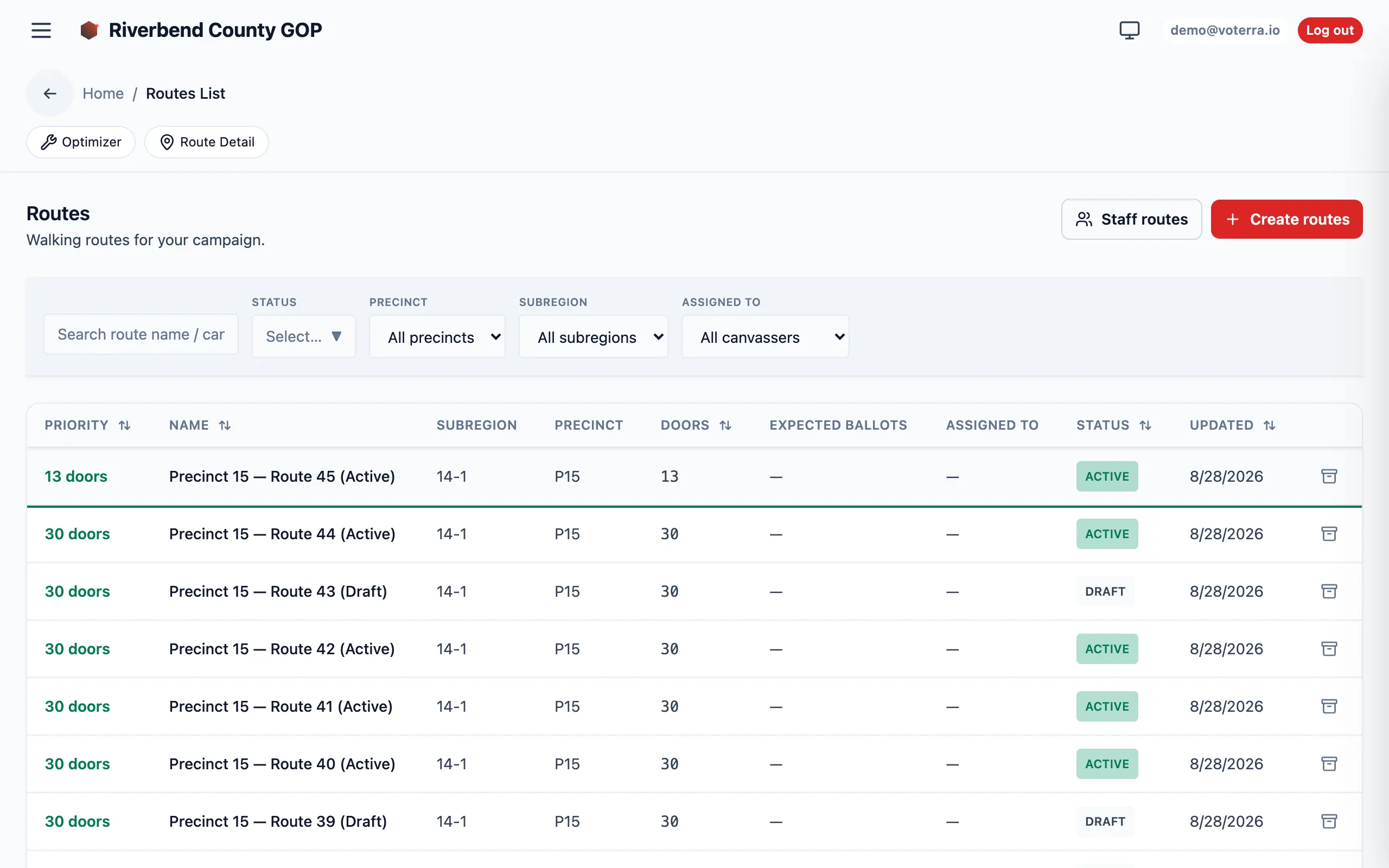
Click any row to open that route’s detail view. The route lifecycle (Draft → Assigned → In Progress → Complete) is covered in Canvass lifecycle.
Feedback
Section titled “Feedback”The Feedback view collects canvasser notes and field observations after a shift. It’s the human side of the AAR replay loop: the auto-apply worker handles routine corrections (moved, bad address), and anything higher-risk surfaces here for a coordinator or analyst to act on. Reviewing feedback is what keeps tomorrow’s routes honest about what the field actually found.