
Field operations (canvasser workflow)
This guide walks the canvasser experience end to end, plus the coordinator view of the same shift.
Before the shift
Section titled “Before the shift”-
Get assigned — A coordinator assigns you a route. It appears under the Routes tab with a target time window, a stop count, and an estimated walking distance.
-
Charge and preload — Open the route once while you’re still on Wi-Fi. The stop list, voter metadata, and basemap tiles cache locally so you’re not dependent on cell signal at the door.
-
Confirm identity — The first screen on a shift re-prompts for the canvasser id. The shift is stamped with that id — every knockback inherits it.
Starting a shift
Section titled “Starting a shift”- Tap the route → Start. This opens a shift — the container every knock on this walk belongs to.
- The next stop is highlighted on the map, with the route’s distance and estimated walking time.
- Use Pause for breaks or driving segments. Paused time is excluded from pace calculations.
At the door
Section titled “At the door”Every door is one of six outcomes:
| Outcome | When to use it |
|---|---|
| Talked | A human had a real conversation with you. Capture support level (1–5) and any issue tags they mentioned. |
| Not home | You knocked; nobody answered. Default behavior — leaves the door eligible for a later pass. |
| Refused | The resident declined to talk. Door will not be re-routed to you. |
| Moved | The voter on the stop no longer lives here. Triggers an address-correction task on the roll. |
| Come back | Someone was home but the voter on record wasn’t. Queues a retry in the follow-up window. |
| Do not contact | Resident explicitly withdrew consent. Permanent, organization-wide suppression — use deliberately. |
Data worth capturing
Section titled “Data worth capturing”- Support level (1–5) — 1 = strong oppose, 5 = strong support. Drives the scoring adjustment and future universe selection.
- Issue tags — pick from your organization’s tag list, or free-text. The list shows your org-wide issues plus the issues belonging to the candidates on this walk, so it stays short and relevant; a tag that belongs to one candidate is labelled with their name. Tags feed narrative clustering on the analytics side.
- Free-text notes — optional but the highest-leverage field. Notes flow into the AAR queue and become feedback for tomorrow’s route.
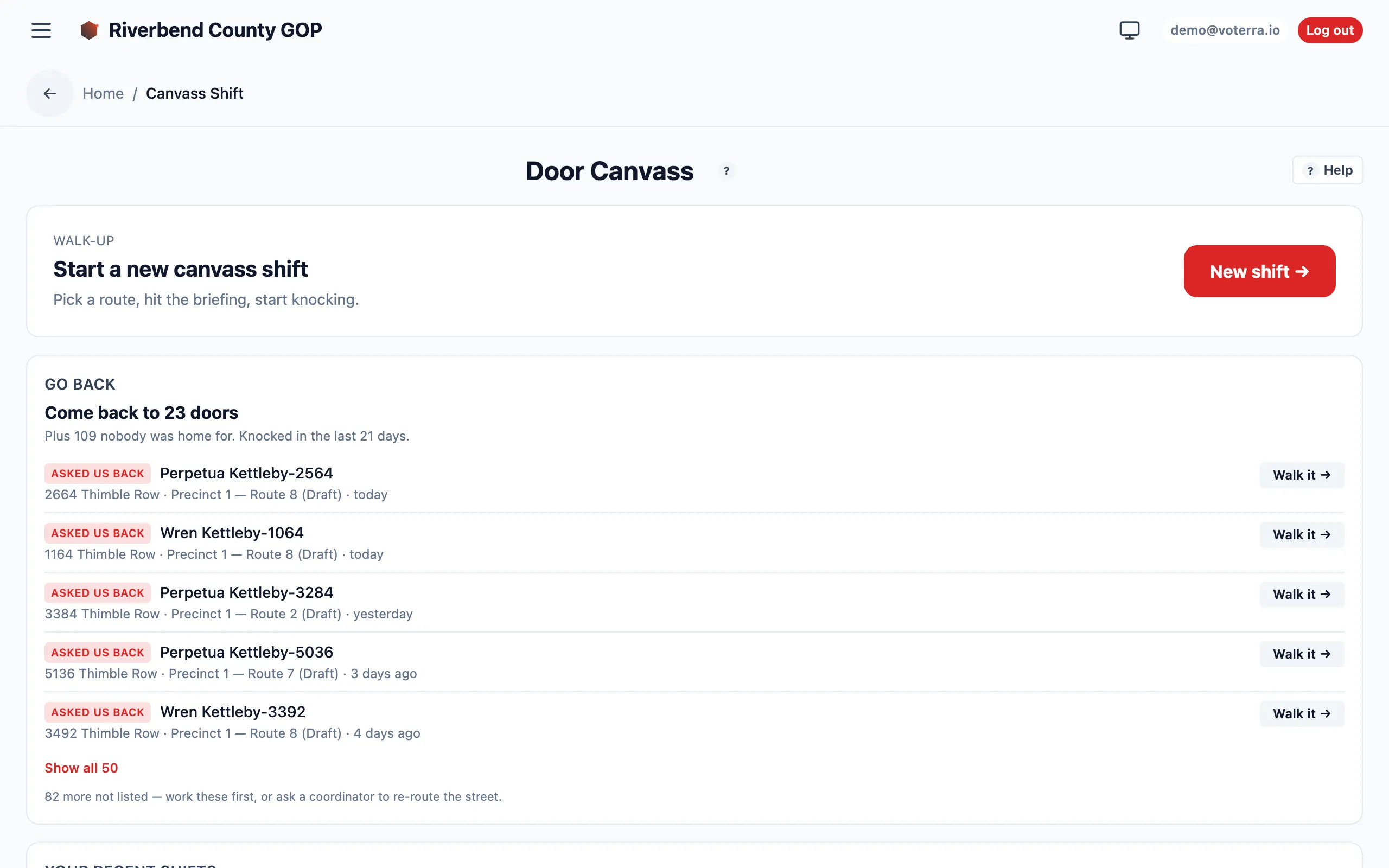
The Door Canvass view a canvasser works from — start a shift, then log each door’s outcome.
Offline behavior
Section titled “Offline behavior”The app is designed to keep working when cell signal drops:
- Knockbacks queue locally and sync the moment the device reconnects. The queue depth is visible from the route header.
- Each queued knock keeps its GPS stamp and timestamp from the moment it was logged, so the record is faithful even when it syncs later.
End of shift: debrief
Section titled “End of shift: debrief”- Tap Finish route. The shift closes and the route flips to Complete.
- Fill the AAR form: what worked, what didn’t, roll corrections, issue themes.
- Submit. Voterra picks the AAR up within a minute — eligible corrections apply to the roll automatically, and the rest go to your coordinator for review.
What the coordinator sees in real time
Section titled “What the coordinator sees in real time”As you work, the coordinator dashboard updates without refresh:
- Map pins flip from gray → green (talked) / red (refused) / yellow (not home) as each knockback lands.
- Per-canvasser metrics — contact rate, refusal rate, stops remaining.
- Device beacon — each phone’s last check-in time and how many knocks it has queued offline. A long silence usually means offline, not idle.
- AAR queue — notes surface seconds after submission; auto-apply-eligible rows land within a minute.
Troubleshooting
Section titled “Troubleshooting”| Symptom | Likely cause | Fix |
|---|---|---|
| ”Start” is greyed out | Route is unassigned or assigned to another canvasser | Coordinator reassigns. |
| Pin stays gray after a knockback | Device is offline; entry is queued locally | Confirm queue depth on the route header; sync happens on reconnect. |
| Knocks saving without a location | The browser was denied location access | Allow location for the site in the phone’s browser settings — knocks always save either way. |
| Voter on stop looks wrong | Roll drift since last import | Log Moved or Come back and add a note — the AAR pass will correct the roll. |